For years, one of the most-asked questions from admins moving from Configuration Manager to Intune was simple: where are my maintenance windows? Update rings gave us deferrals, deadlines, active hours and grace periods, but nothing that said “this device may only patch on Sunday night”. With the Intune service release of mid-November 2026, that gap is finally closed. In this post I’ll walk through what the new Maintenance windows policy does, how to set one up, and the pitfalls to keep in mind before you roll it out.
What problem does it solve?
Active hours tell Windows when not to restart. A maintenance window flips that around: it defines the only period in which automatic update work is allowed to start. That makes behaviour much more predictable for shared devices, kiosks, shop-floor PCs or anything that simply cannot reboot during business hours.
Important to understand up front: a maintenance window only controls timing. Which updates a device receives is still decided by your update rings, feature update policies, driver policies or Windows Autopatch.
Prerequisites
- Devices enrolled in Intune.
- Windows 11 24H2 with KB5077181 installed (build 26100.7840 or newer). Older builds simply won’t act on the policy.
- An Intune role that can create and assign device configuration policies.
- A pilot group of representative devices. Don’t go straight to “All devices”.
Which updates are covered?
The window governs Windows Update content: quality updates, feature updates, Hotpatch, .NET updates, drivers and firmware. Win32 apps, Store apps and Microsoft 365 Apps updates are not part of it, so those keep following their own schedules.
Choosing the right update action
The most important decision in the policy is the Update action. It determines which steps have to wait for the window and which can happen at any time:
| Update action | Waits for the window | Can happen any time |
|---|---|---|
| Download, install and restart | Download, install, restart | Nothing (exceptions aside) |
| Install and restart | Install, restart | Download |
| Restart only | Restart | Download, install |
For most office devices, Install and restart is the sweet spot: content is pre-downloaded during the day, so the window itself is spent installing rather than waiting on bandwidth. Use Download, install and restart only for devices on metered or constrained connections where even a background download during work hours is a problem.
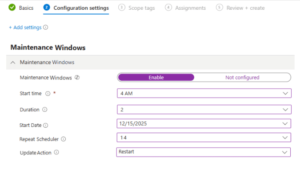
Creating the policy step by step
- In the Intune admin center, go to Devices > Manage devices > Maintenance windows and choose Create.
- On Basics, give the policy a clear name, for example
MW - Weekly - Sunday 02:00 - 4h. Putting the schedule in the name saves you a lot of clicking later. - On Configuration settings, set the workload type to Updates, switch Enable Maintenance windows on and pick your update action.
- Define the schedule: start date, start time (HH:MM), duration and repeat pattern (see the table below).
- Add scope tags if you use them, assign the policy to your pilot device group, and create it.
| Setting | Options |
|---|---|
| Start date | Required (YYYY-MM-DD). For recurring windows, the first matching day on or after this date is used. |
| Start time | HH:MM in the device’s local time |
| Duration | 2 to 24 hours |
| Repeat | None (one-time), Daily, Weekly (one or more days), Monthly (day 1–28, or e.g. “second Tuesday”) |
There is no time zone setting. A 02:00 window means 02:00 wherever the device is, which is great for a global fleet but something to remember when you compare timestamps in reports.
When updates still happen outside the window
A maintenance window is strong, but not absolute. Windows can still act outside it in these cases:
- Expedited quality updates: by design, these skip the queue.
- Expired deadlines and grace periods: if a device has missed its deadline, Windows can force the install and restart.
- Device provisioning, for example during Autopilot.
- Education cart servicing, when that policy is configured.
- Minor-impact updates that Windows itself classifies as low-risk.
- Users who start an update manually, where Windows allows it.
Also keep in mind that the window controls when work may begin. An install that kicks off five minutes before the end of the window can keep running after it closes. If your updates regularly take long, make the window longer rather than hoping they fit.
How it fits with your update rings
Deferrals decide when an update is offered; the window decides when it may be acted on. They add up. Say your ring defers quality updates by 7 days and your window is Saturday night. A Patch Tuesday release becomes available the following Tuesday, so the first opportunity to install is the Saturday after that, roughly 11 days after release. Do that maths before promising your security team a patch SLA.
Deadlines deserve extra thought. A deadline that expires before the next window will override the window and force the update, which is exactly the disruption you were trying to avoid. Either make your deadlines long enough to always include at least one window, or rely on the window as the main scheduling mechanism and keep deadlines as a safety net only.
Monitoring
On the policy itself you’ll find device and user check-in status, assignment status and per-setting status. Be aware that this only tells you the policy arrived on the device, not that updates actually installed inside the window. For that, use the Windows Update or Windows Autopatch reports and compare install times with each device’s local schedule.
Troubleshooting checklist
- Updates outside the window? Check the chosen update action, expedited updates, expired deadlines, user-initiated installs, and whether the action simply started inside the window and ran over.
- Nothing installs? Confirm the device is on build 26100.7840 or later, received the policy, isn’t still in a deferral period, and is actually powered on during the window.
- Recurring window never triggers? For weekly, make sure at least one day is selected; for monthly, use day 1–28 or set both week and weekday. Check that a one-time window hasn’t already passed.
My recommendations
- Start with a pilot group and a generous window of at least 4 hours.
- Prefer Install and restart unless you have a real reason to hold back downloads.
- Review deferrals and deadlines together with the window, not in isolation.
- Clean up one-time windows once they have passed, so they don’t confuse you (or a colleague) later.
- Tell users. A device that suddenly patches only at night still needs to be switched on at night.
Further reading